Questions, bug reports, feature ideas: we read everything. Please include your macOS or iOS / iPadOS version, your device model, and the Copymunk version (Settings → About on Mac; the About row at the bottom of Settings on iPhone and iPad). We usually reply within a few days.
- Copymunk lives in the menu bar (the chipmunk icon in the top-right corner). It has no Dock icon and no main window.
- Copy anything in any app. It shows up in Copymunk automatically.
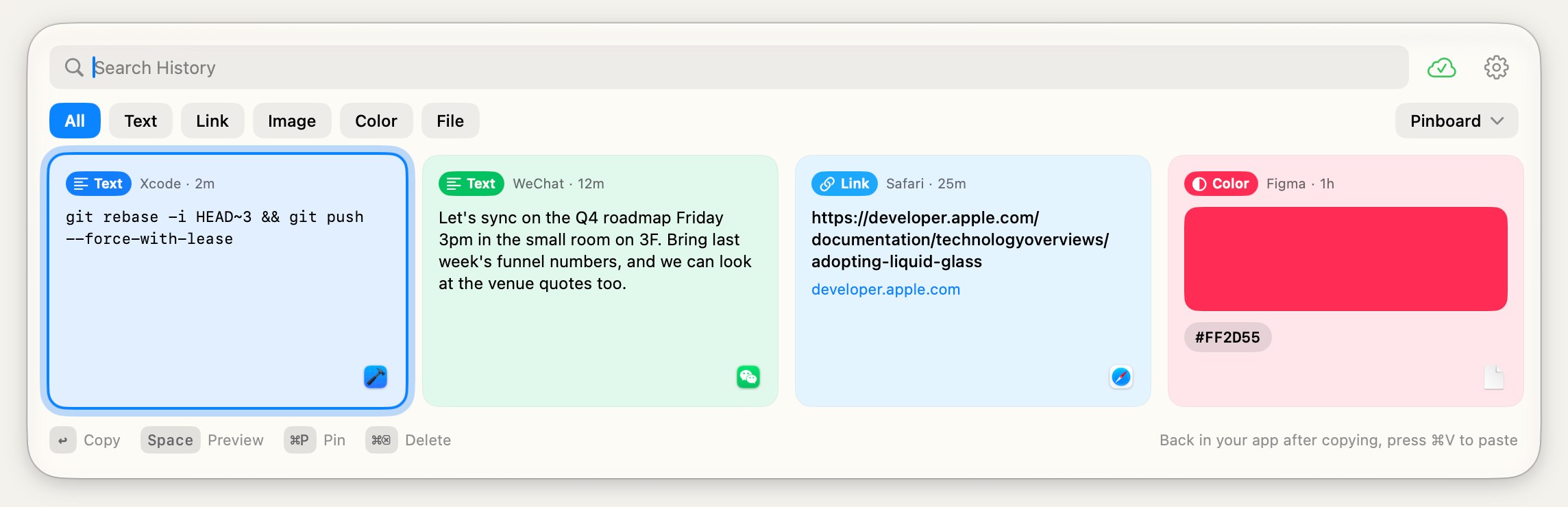
- Press ⇧⌘V or click the menu bar icon to open the clipboard panel. Type to search, use ← → to move, Space to preview.
- Press Return to put the selected item back on the clipboard. The panel closes and you're back in the app you were using, so just press ⌘V.
- Right-click a card to pin it to a Pinboard, copy it as plain text or delete it. Settings are behind the gear button in the panel, or right-click the menu bar icon.
Pressing Return doesn't paste anything. Is that a bug?
No. Return puts the item on the clipboard, closes the panel and returns you to the app you were using; press ⌘V to paste. Copymunk deliberately never types into other apps, which is also why it needs no special permissions.
Does Copymunk need any system permissions?
No. Copymunk asks for neither Accessibility nor Input Monitoring, and it never watches what you type in other apps. The ⇧⌘V shortcut uses the standard system hotkey API. If you choose iCloud sync, it uses the Apple account already signed in on your Mac.
How do I change the shortcut?
Settings → Shortcuts → click the current shortcut and press a new combination. It must include ⌘, ⌥ or ⌃. “Reset” restores ⇧⌘V.
Where is my data stored? Does anything leave my Mac?
Everything stays on your Mac: the App Store version keeps its data in ~/Library/Containers/dev.vibemage.Copyo/, the direct-download version in ~/Library/Application Support/Copyo/. Copymunk has no analytics, no crash reporting and no servers of its own. See the privacy policy.
How does sync between my Macs work?
Settings → Sync. You can either point Copymunk at a folder you choose (for example a folder inside iCloud Drive or another synced drive), or use your own iCloud account. In both cases the data is stored with the provider you picked; it never passes through a server run by us. To sync with an iPhone or iPad, choose iCloud; see iPhone & iPad FAQ.
Something I copied doesn't appear in the history.
Content that apps mark as concealed or transient (passwords from password managers, for example) is skipped on purpose and never recorded.
How do I delete items or clear the history?
Select a card and press ⌘⌫, or right-click it and choose Delete. The history limit and “clear history” are in Settings → Clipboard. Pinned items on Pinboards are not affected by history cleanup.
How do I uninstall Copymunk completely?
- Quit Copymunk (right-click the menu bar icon → Quit).
- Move Copymunk to the Trash (or delete it from Launchpad for the App Store version).
- Delete the data folder listed above if you want the history removed too.
iOS doesn't let any app watch the clipboard in the background, so Copymunk saves at moments you choose:
- When you open Copymunk. Every time you open or come back to Copymunk, it reads the clipboard and saves anything new (Settings › Read Clipboard Automatically, on by default). The very first launch doesn't save what was already on the clipboard.
- From the share sheet. Select text, a link or an image in any app, tap Share, then choose Copymunk. You can pin it to a Pinboard on the way in.
- Quick Save. After copying, press the Action Button (iPhone 15 Pro and later), tap the Copymunk control in Control Center or on the Lock Screen, or double-tap the back of your iPhone (Back Tap). Copymunk opens and saves the clipboard. Set it up in Copymunk › Settings › Quick Save.
- From your Mac. With iCloud sync on at both ends, what you copy on your Mac arrives on its own.
Tap a card to copy it back to the clipboard, then paste wherever you like. Swipe left to delete, swipe right to pin, or touch and hold for more.
iOS asks “Allow Paste” every time I open Copymunk.
That's the iOS default. To stop it, open the Settings app › Apps › Copymunk › Paste from Other Apps and choose Allow. The “Paste from Other Apps” row only shows up after Copymunk has asked at least once, so if it isn't there yet, copy something, open Copymunk, answer the prompt, then look again. Copymunk › Settings › Allow Paste from Other Apps has a button that takes you straight there. iOS doesn't let Copymunk read this setting, so Copymunk can't show which option you picked.
If you tap “Don't Allow”, or turn off Read Clipboard Automatically, History shows a “New clipboard content” banner with the system Paste button, so you can still save by hand.
How do I sync with my Mac?
- Sign in to the same Apple Account on your Mac and your iPhone or iPad.
- On the Mac, open Copymunk Settings → Sync, choose iCloud, then restart Copymunk (Settings offers a Restart Copymunk button).
- On iPhone and iPad, iCloud Sync is on by default. Copymunk › Settings › Sync shows the current status.
Shared Folder sync on the Mac doesn't reach iPhone or iPad; only iCloud does. Turning iCloud Sync on or off takes effect after you reopen Copymunk.
Why doesn't Copymunk save in the background like it does on the Mac?
iOS only lets an app read the clipboard while that app is on screen, and doesn't let one app type into another. No app can get around this. That's why Copymunk saves when you open it, from the share sheet, or through Quick Save, and why pasting is up to you: tap a card to copy it, then paste as usual. The Mac works the same way: Copymunk copies, you paste.
Does Copymunk skip passwords on iPhone and iPad?
No. iOS doesn't tell apps which app copied something or whether a password manager marked it as concealed, so the Mac's concealed-content filter and ignore list don't exist on iOS. If a password or code ends up in History, swipe left on it to delete it. “Show Clips in System Search” is off by default, so clips stay out of Spotlight unless you turn it on.
Where is my data stored, and how do I delete it?
History is stored on your device. With iCloud Sync on (the default on iPhone and iPad), it's also kept in your own private iCloud database, which we can't read. Settings › Clear History deletes every clip that isn't pinned to a Pinboard; with sync on, deletions reach iCloud and your other devices too. Deleting the app removes the data on that device but not the iCloud copy. See the privacy policy.
Something isn't working. What should I send?
Email us or open a GitHub issue (see Contact) with your iOS or iPadOS version, your device model, the Copymunk version from the About row in Settings, what the Sync status in Settings says, and the steps that lead to the problem. Screenshots help.
问题、Bug、功能建议都欢迎。请附上 macOS 或 iOS / iPadOS 版本、设备型号,以及 Copymunk 的版本号(Mac 上在「设置 → 关于」;iPhone 和 iPad 上在「设置」最下方的「关于」一行)。通常几天内回复。
- Copymunk 常驻菜单栏(右上角的花栗鼠图标),没有 Dock 图标,也没有主窗口。
- 在任意应用里复制任何内容,它会自动出现在 Copymunk 中。
- 按 ⇧⌘V 或点击菜单栏图标呼出面板。直接输入即可搜索,← → 切换卡片,Space 预览。
- 按 Return 把选中的条目放回剪贴板。面板随即收起并回到你之前使用的应用,直接按 ⌘V 粘贴即可。
- 右键卡片可固定到 Pinboard、以纯文本复制或删除。设置在面板右上角的齿轮按钮里,或右键菜单栏图标。
按回车没有粘贴任何内容,是不是坏了?
不是。回车会把条目放回剪贴板、收起面板并回到你之前使用的应用,按 ⌘V 即可粘贴。Copymunk 有意不向其他应用模拟输入,所以也不需要任何特殊权限。
Copymunk 需要什么系统权限吗?
不需要。Copymunk 不申请「辅助功能」和「输入监控」权限,也从不监听你在其他应用中的输入。⇧⌘V 快捷键使用系统标准的全局热键接口。若选择 iCloud 同步,使用的是 Mac 上已登录的 Apple 账户。
怎么修改快捷键?
设置 → 快捷键 → 点击当前快捷键,然后按下新的组合键(必须包含 ⌘、⌥ 或 ⌃)。「重置」可恢复为 ⇧⌘V。
数据存在哪里?会上传吗?
全部保存在本机:App Store 版在 ~/Library/Containers/dev.vibemage.Copyo/,直接下载版在 ~/Library/Application Support/Copyo/。Copymunk 没有统计分析、没有崩溃上报,也没有自己的服务器。详见隐私政策。
多台 Mac 之间怎么同步?
设置 → 同步。可以让 Copymunk 使用你指定的文件夹(例如 iCloud Drive 或其他网盘里的文件夹),也可以使用你自己的 iCloud 账户。两种方式下数据都保存在你选择的服务商那里,不会经过我们的服务器。要和 iPhone 或 iPad 同步,请选 iCloud,详见下方「iPhone 和 iPad 常见问题」。
有些复制的内容没有出现在历史里。
被应用标记为隐藏或临时的内容(例如密码管理器里的密码)会被有意跳过,永远不会记录。
怎么删除条目或清空历史?
选中卡片按 ⌘⌫,或右键选择删除。历史上限和「清空历史」在 设置 → 剪贴板。固定在 Pinboard 上的条目不受历史清理影响。
怎么彻底卸载 Copymunk?
- 退出 Copymunk(右键菜单栏图标 → 退出)。
- 把 Copymunk 移到废纸篓(App Store 版可在启动台中删除)。
- 若也要删除历史记录,删除上面列出的数据目录。
iOS 不允许任何 App 在后台监听剪贴板,所以 Copymunk 在你选定的时机保存:
- 打开 Copymunk 时。每次打开或回到 Copymunk,它都会读取剪贴板并保存新内容(设置 › 自动读取剪贴板,默认开启)。第一次启动时不会保存剪贴板里已有的内容。
- 从分享面板。在任意 App 里选中文本、链接或图片,点「分享」,再选 Copymunk。保存时还可以顺手固定到某个 Pinboard。
- 一键保存。复制之后,按操作按钮(iPhone 15 Pro 及以后机型),点控制中心或锁屏上的 Copymunk 控件,或者轻点两下 iPhone 背面(轻点背面)。Copymunk 会打开并保存剪贴板。在 Copymunk › 设置 › 一键保存 里设置。
- 来自 Mac。两端都开启 iCloud 同步后,你在 Mac 上复制的内容会自己出现。
轻点卡片即可把它复制回剪贴板,然后在任何地方粘贴。左滑删除,右滑固定,长按查看更多操作。
每次打开 Copymunk,iOS 都会弹出「允许粘贴」。
这是 iOS 的默认行为。要关掉它,打开「设置」App › App › Copymunk › 从其他 App 粘贴,选择允许。「从其他 App 粘贴」这一行只有在 Copymunk 至少询问过一次之后才会出现:如果还看不到,先复制点东西、打开 Copymunk、回应一次弹窗,再回去找。Copymunk › 设置 › 允许从其他 App 粘贴 里有按钮可以直接跳过去。iOS 不允许 Copymunk 读取这项设置,所以 Copymunk 无法显示你选的是哪一项。
如果你点了「不允许」,或者关掉了「自动读取剪贴板」,历史页顶部会出现「新的剪贴板内容」横幅,上面有系统的「粘贴」按钮,仍然可以手动保存。
怎么和 Mac 同步?
- 在 Mac 和 iPhone / iPad 上登录同一个 Apple 账户。
- 在 Mac 上打开 Copymunk 设置 → 同步,选择 iCloud,然后重启 Copymunk(设置页里有重启按钮)。
- iPhone 和 iPad 上的 iCloud 同步默认开启,Copymunk › 设置 › 同步 里可以看到当前状态。
Mac 上的共享文件夹同步到不了 iPhone 和 iPad,只有 iCloud 可以。开关 iCloud 同步需要重新打开 Copymunk 才会生效。
为什么不能像 Mac 那样在后台保存?
iOS 只允许 App 在自己显示在屏幕上时读取剪贴板,也不允许一个 App 往另一个 App 里输入内容,任何 App 都绕不过去。所以 Copymunk 在你打开它时、从分享面板、或通过一键保存来保存内容;粘贴则由你来完成:轻点卡片复制,然后照常粘贴。Mac 上也一样:Copymunk 负责复制,粘贴由你来。
iPhone 和 iPad 上会跳过密码吗?
不会。iOS 不会告诉 App 内容是哪个 App 复制的,也不会告诉它密码管理器是否把内容标记为隐藏,所以 Mac 上的隐藏内容过滤和忽略应用列表在 iOS 上并不存在。如果密码或验证码进了历史,左滑即可删除。「在系统搜索中显示条目」默认关闭,除非你打开它,条目不会出现在 Spotlight 里。
数据存在哪里?怎么删除?
历史保存在你的设备上。开启 iCloud 同步时(iPhone 和 iPad 上默认开启),还会保存在你自己的 iCloud 私有数据库里,我们读不到。设置 › 清空历史 会删除所有没有固定到 Pinboard 的条目;开启同步时,删除也会同步到 iCloud 和你的其他设备。删除 App 会清除该设备上的数据,但不会删除 iCloud 中的副本。详见隐私政策。
遇到问题,应该提供哪些信息?
发邮件或在 GitHub 提 Issue(见上方「联系我们」),附上 iOS 或 iPadOS 版本、设备型号、设置里「关于」一行显示的 Copymunk 版本号、设置里同步状态显示的内容,以及出现问题的操作步骤。有截图更好。